
Use activity logs and messages
Logs and messages help admins understand what changed in the workspace and keep employee communication inside WiseWage. Use Logs for audit review and Messages for operational conversations.
WiseWage SupportUpdated May 20265 min read
Available for: Company Owner, Company AdminPlatform: HR PlatformPlan: Core HR, Payroll, Enterprise
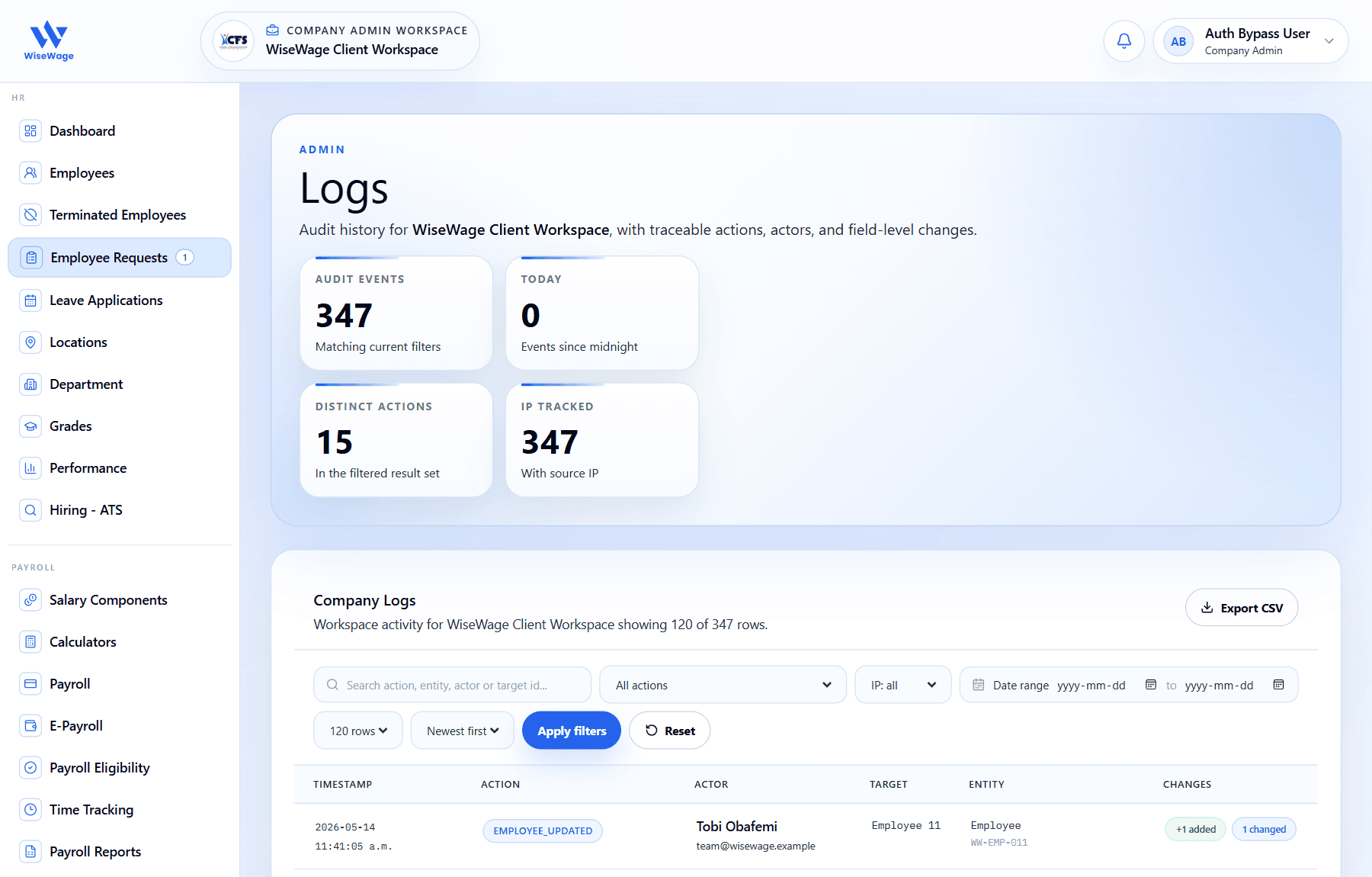
1Review audit activity metrics
2Filter or export log records
3Inspect traceable activity rows
Review activity logs
- 1Open Admin > Logs.
- 2Filter by actor, action, employee, company, or date where available.
- 3Review sensitive events after user access, payroll, employee record, approval, or settings changes.
- 4Export logs when your internal audit process requires a copy.
Use workspace messages
- 1Open Admin > Messages.
- 2Start or open a conversation with the relevant employee or workspace participant.
- 3Keep payroll, HR, document, and follow-up conversations inside the message thread when possible.
- 4Use notifications and unread badges to track replies.
Good practice
- 1Use logs to confirm who changed access, settings, payroll, or employee records.
- 2Use messages for communication, not for silently changing records.
- 3Keep review comments and message replies clear enough for later audit review.