
Set employee portal access
Employee portal access is managed from the company user area. Use it to connect employee records to sign-in access, send invitations or temporary passwords, and remove access when an employee should no longer use self-service.
WiseWage SupportUpdated May 20265 min read
Available for: Company Owner, Company AdminPlatform: HR PlatformPlan: Core HR, Payroll, Enterprise
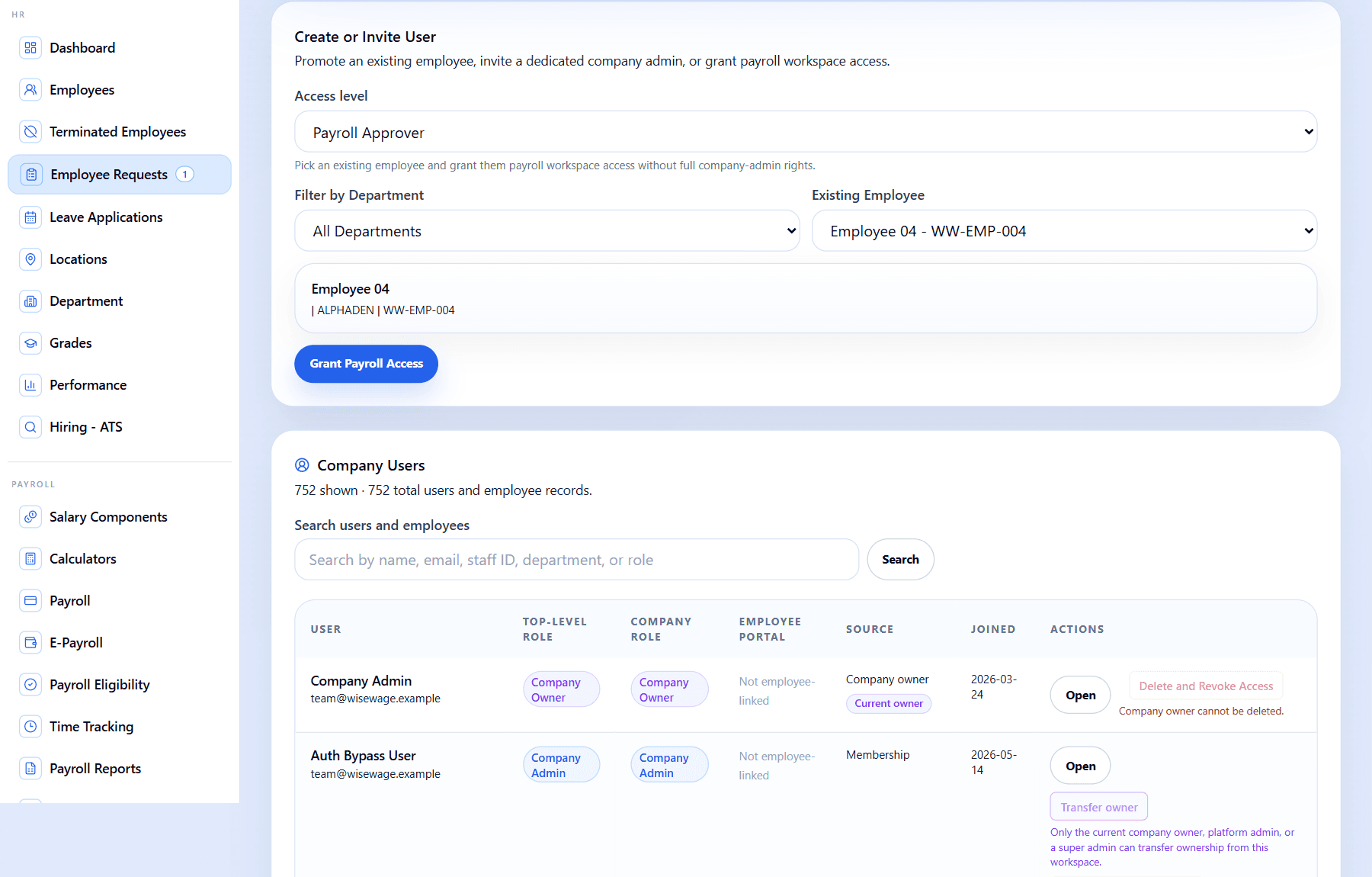
1Choose the access level or invite path
2Search users and employee records
3Review Employee Portal status and actions
Open employee access
- 1Open Admin > Users.
- 2Find the employee or user profile by name, email, or staff ID.
- 3Open the employee access controls for that record.
- 4Confirm the employee record is linked to the correct email before granting access.
Grant or resend access
- 1Grant employee portal access only to employee user accounts.
- 2Use resend invitation or temporary password actions where available when the employee cannot sign in.
- 3Ask the employee to use the Employee sign-in portal after access is created.
- 4Check Logs after access changes if you need an audit trail.
Remove access
- 1Remove portal access when the employee should no longer sign in to self-service.
- 2Use the in-app confirmation modal before removing or disabling access.
- 3Do not remove the employee record itself unless HR has confirmed the record should be deleted.