
Manage users, access, and settings
Company settings and user access controls help admins keep the workspace accurate and secure. Use Settings for branding and report access, and Users for invitations, portal access, company roles, and ownership controls.
WiseWage SupportUpdated July 20267 min read
Available for: Company Owner, Company AdminPlatform: HR PlatformPlan: Core HR, Payroll, Enterprise
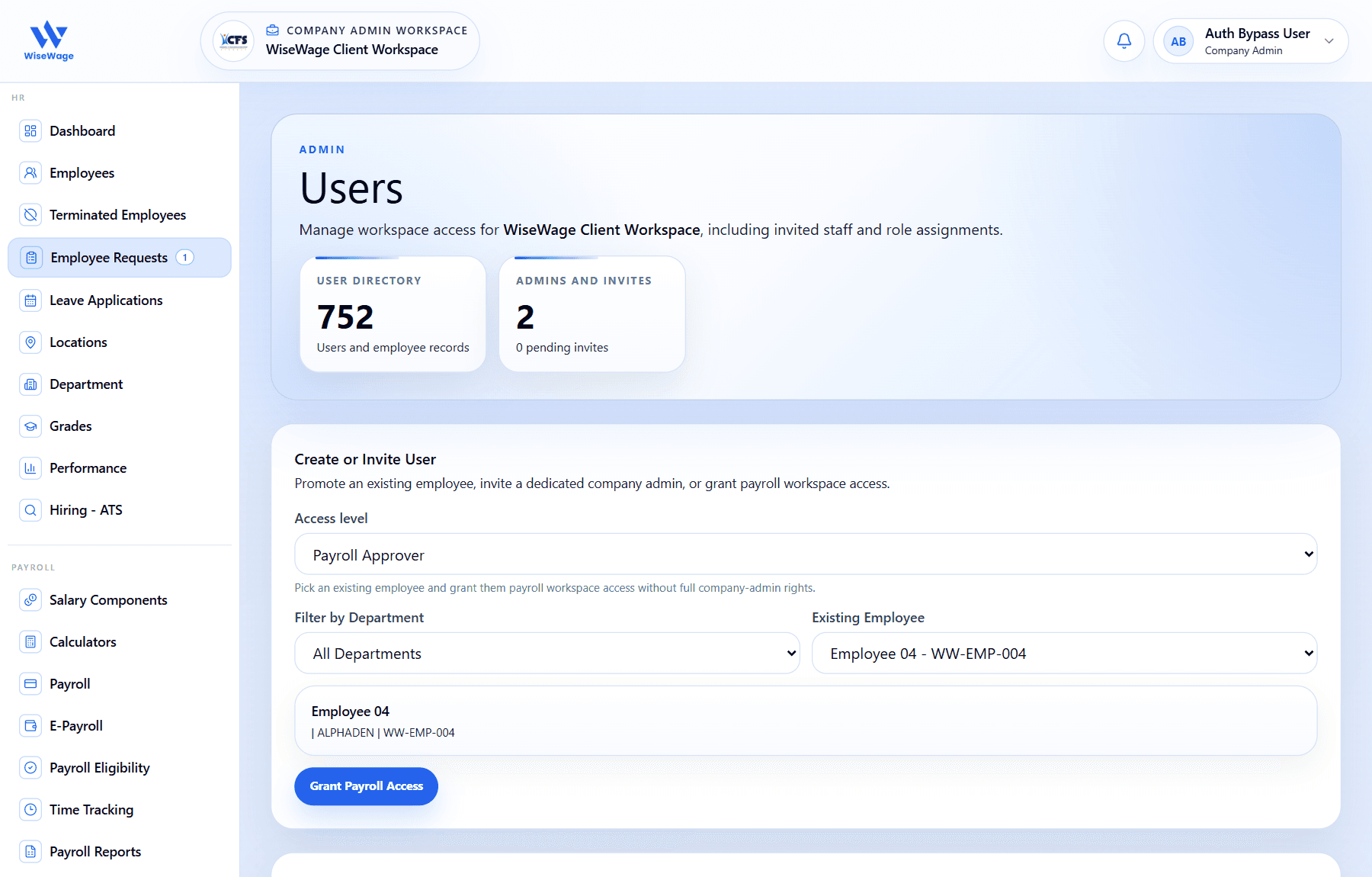
1Review users and employee records
2Choose the access level to grant
3Grant workspace access
Settings you can manage
- 1Profile: identity and phone details.
- 2Firm: company branding, abbreviation, address, employee count, payroll report access, and weekly payroll reporting.
- 3Security: data retention, backup JSON download, and restore backup.
- 4Billing: plan visibility and usage status.
- 5Instructions: reusable company guidance and notes.
User access controls
- 1Open Admin > Users.
- 2Invite users or connect employee records to user access.
- 3Control employee portal access.
- 4Use module permissions where available.
- 5Transfer ownership only when the company owner should change.
Portal sign-in handoff
- 1Company, consultant, and employee sign-ins open a short workspace loading screen after credentials are accepted.
- 2The loading screen waits for the authenticated session and workspace permissions before opening the correct dashboard.
- 3If an account uses the wrong portal, WiseWage still shows the portal-specific access message instead of opening the workspace.
Automatic session timeout
- 1Company admin and employee sessions end after 30 minutes without user activity.
- 2WiseWage shows a warning two minutes before the inactivity deadline. Choose Stay signed in to continue or Sign out now to leave immediately.
- 3Activity is synchronized across open tabs, so using WiseWage in one tab keeps the same signed-in session active in the others.
- 4Every session ends after 12 hours even when active. Sign in again through the correct company or employee portal.
- 5Unsaved work may be lost when a session expires, so save forms and drafts before leaving the workspace.
Security precautions
- 1Use confirmation modals for destructive changes.
- 2Download settings backups before major changes.
- 3Review logs after sensitive access updates.
- 4Sign out manually before leaving a shared or unattended device; do not rely only on the automatic timeout.