
Approve or reject employee changes
Approval decisions should be made from the request detail after checking the submitted change, affected employee record, and any payroll impact.
WiseWage SupportUpdated May 20265 min read
Available for: Company Admin, HR Admin, Payroll AdminPlatform: HR PlatformPlan: Core HR, Payroll, Enterprise
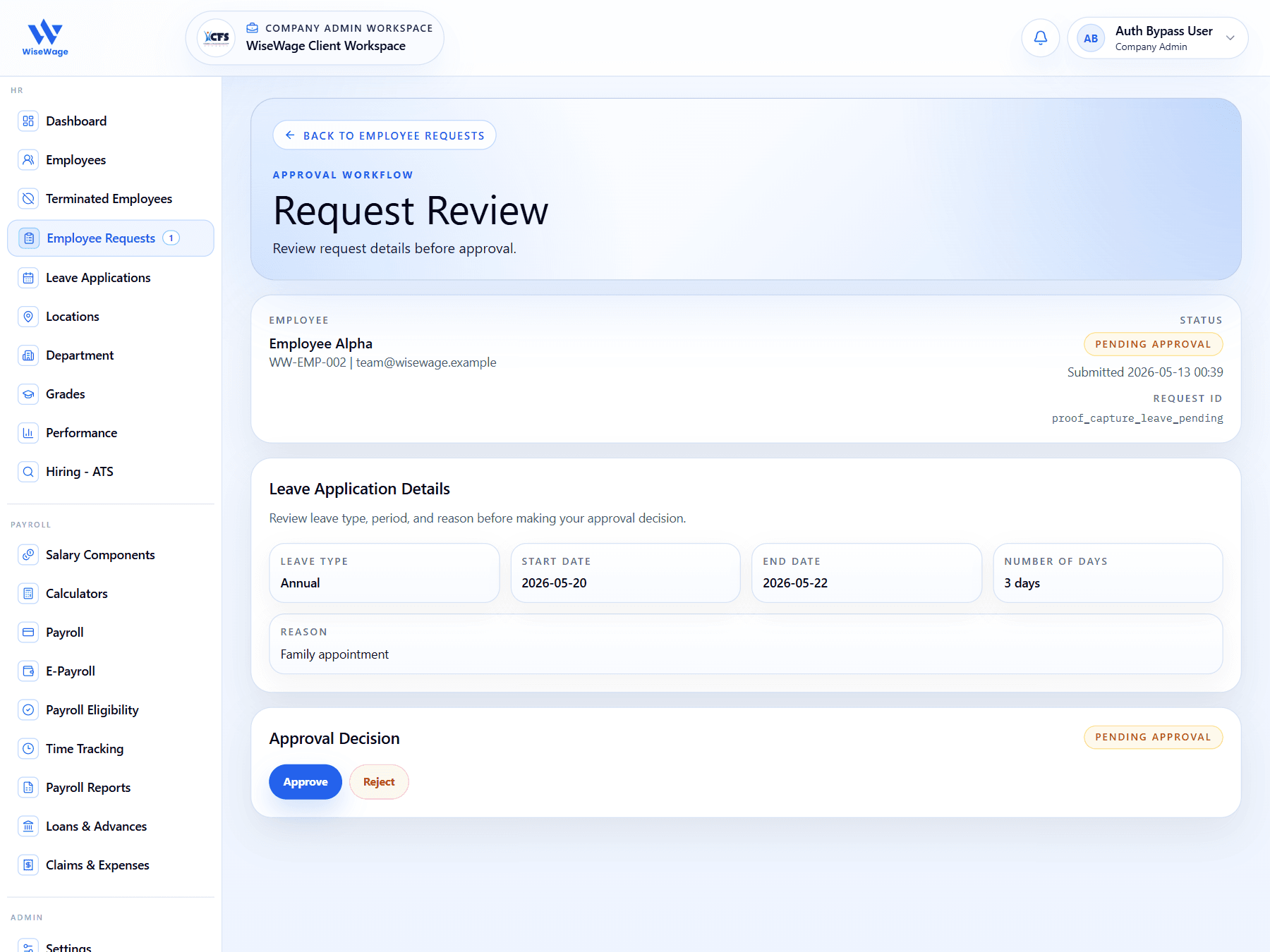
1Confirm employee and request status
2Review submitted leave details
3Approve or reject from the decision panel
Open the request detail
- 1Open HR > Employee Requests.
- 2Select the pending request.
- 3Confirm the employee name, staff ID, email, request status, submitted date, and request ID.
- 4Review the request-specific detail section, such as leave dates, bank details, profile changes, claim values, or loan values.
- 5Check supporting documents or notes where the request includes them.
Approve a change
- 1Approve the request only when the submitted values are correct and permitted under company policy.
- 2For leave, confirm the leave type, start date, end date, number of days, and reason.
- 3For bank, claim, loan, advance, or profile changes, compare the submitted values against the employee record and payroll impact.
- 4Approve the request only when the change is correct and permitted.
- 5Add a review comment so the employee and audit trail explain the decision.
Reject a change
- 1Reject the request if information is incomplete, unsupported, or not permitted.
- 2Use the in-app confirmation flow before rejecting.
- 3Add a clear rejection comment so the employee knows what to correct.
- 4Tell the employee to submit a corrected request rather than editing the rejected request.
Payroll impact
- 1Check whether the request affects payroll eligibility, bank payout, leave treatment, claims, loans, advances, or employee master data.
- 2Complete payroll-impact checks before approving changes close to a payroll run.
- 3Review the request again from Employee Requests or Logs if you need evidence of who approved or rejected it.