
Use the hiring ATS
Hiring - ATS gives HR teams a workspace for job requisitions, candidate stages, offers, and hiring analytics.
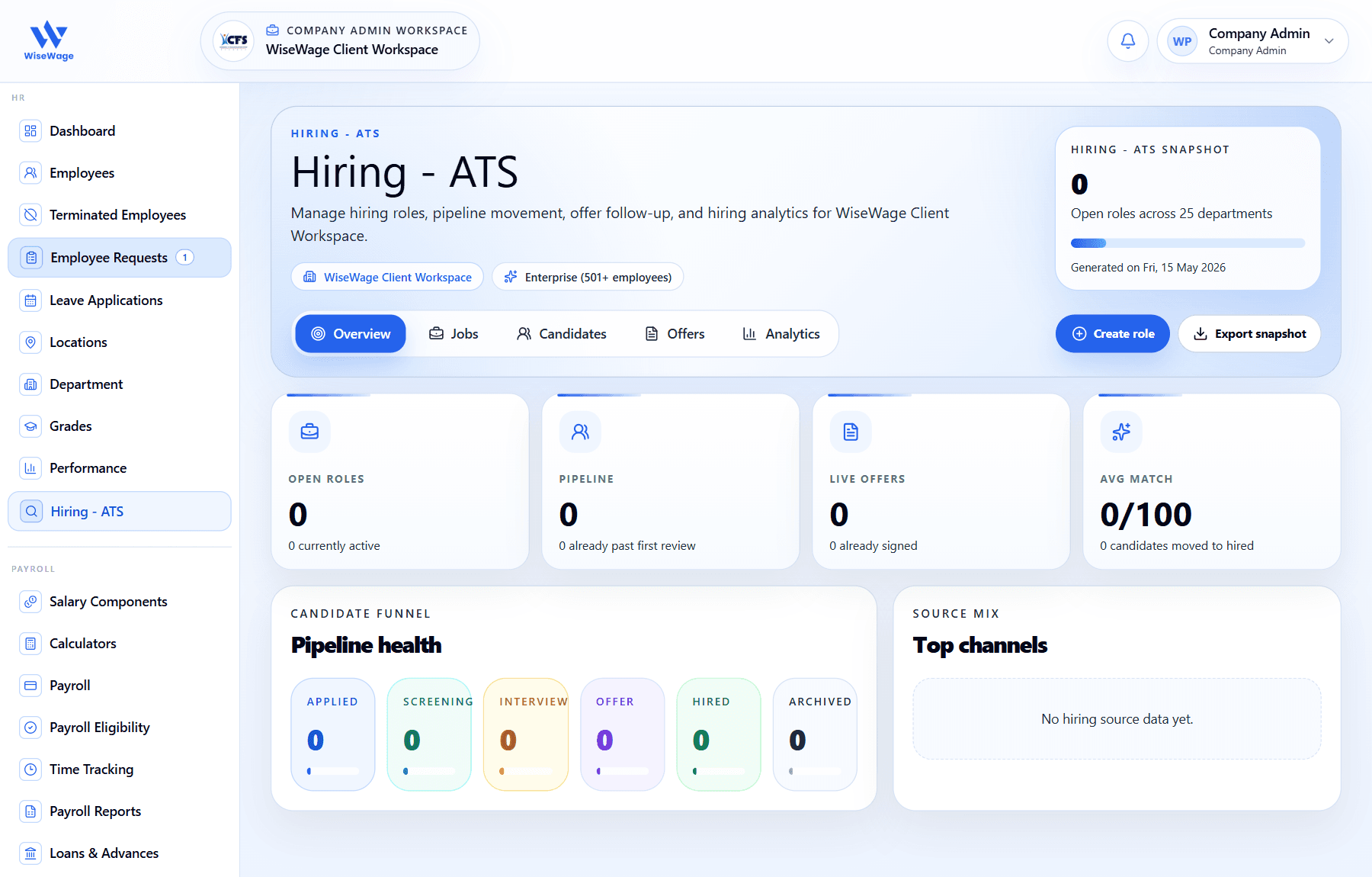
Manage hiring work
- 1Open Hiring > Hiring - ATS.
- 2Review the hiring dashboard for active jobs, candidate counts, and offer status.
- 3Click Create role to open the guided role creation page.
- 4Move candidates through the hiring stages as screening, interviews, offers, and hiring decisions progress.
- 5Use notes and exports to keep hiring records aligned with your company process.
Create a role
The Create role page supports three starting points: copy an existing job, create from an employee record, or use quick search text such as Accountant in Calgary full-time to populate the job fields.
- 1Select the creation method that matches how much information you already have.
- 2Complete Job Title, Country, City/Suburb, Job Type, Employee Working Hours, Workplace Type, and Job Description.
- 3Use the sparkle icon in the description editor when you want AI suggestions.
- 4Select This is an internal role when the position should only be visible to the company team.
- 5Click Create job to continue to screening questions.
Add screening questions and publish
- 1On Screening questions, generate questions with AI, apply a template, or add a custom question.
- 2Turn on Auto-disqualify for any non-negotiable requirement.
- 3Click Save & post.
- 4Enter the minimum and maximum pay rate in the company profile currency and choose the pay frequency.
- 5Select the job boards for external roles, then click Publish and confirm the posting.
Manage the hiring team
- 1Return to the Recruitment dashboard after the job is created.
- 2Locate the new job in the list.
- 3Open the three dots [...] menu and select Invite hiring team.
- 4Add Hiring managers for full access or Collaborators for access to specific stages.
- 5Click Save.
Hiring process templates
Hiring processes define the stages a candidate must pass through before being hired. You can create global templates or adjust the process for a specific role.
- 1Open Recruitment > Recruitment > Hiring Processes.
- 2Click New Process, enter a name, and click Create.
- 3Use Make This Default when the process should apply to all new jobs automatically.
- 4Click New Stage to add custom steps, such as Technical Assessment.
- 5Use the Recruitment Agent toggle on a stage to enable AI-powered video screening. Changes auto-save.
Edit, archive, or delete hiring processes
To change a process for one job, open the Recruitment dashboard, use the three dots [...] menu beside the job, and choose Edit hiring process. You can also open the job and use the Hiring Process tab.
- 1Open Hiring Processes when you need to archive, unarchive, or delete a reusable process.
- 2Use the three dots [...] menu for the process you want to manage.
- 3Select Archive, Unarchive, or Delete.
- 4Do not attempt to delete or archive the organization's Default hiring process; the platform blocks that action.
Blind hiring
Blind hiring is available on Premium and Platinum plans. When enabled, candidate details are anonymized in the New stage and within SmartMatch results.
- 1Open Settings > Recruitment settings.
- 2Open Data Privacy Management.
- 3Turn on Enable blind hiring.
- 4Name, photo, social profiles, email, phone, and specific address remain hidden until the candidate moves to a later stage.